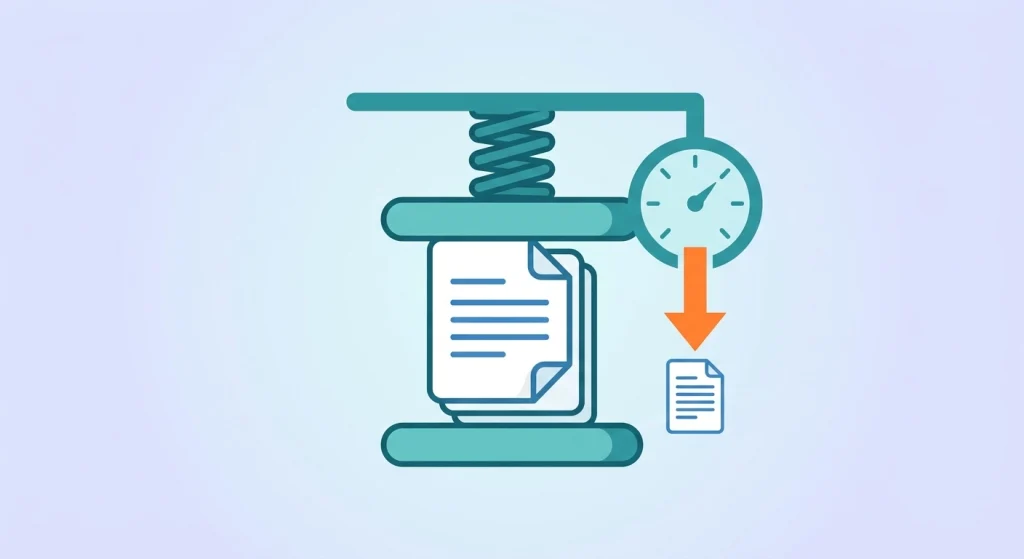
Compress a PDF File Online in seconds. A bloated PDF file can be a real problem — it won’t attach to an email, it takes forever to upload to a job portal, and it eats up storage space you don’t have to spare. The fix isn’t complicated: compressing a PDF online for free can shrink the file dramatically while keeping the text and images perfectly readable.
Here’s how PDF compression works, when to use it, and how to Compress a PDF File Online in seconds.
Why Compress a PDF File?
Large PDFs are usually the result of high-resolution images, embedded fonts, or scanned pages saved at unnecessarily high quality. Compression is useful when you need to:
- Send a file by email — most providers cap attachments around 20–25MB (for example, Gmail’s limit is 25MB).
- Upload to a portal or form — job applications, government sites, and school portals often set strict file size limits.
- Save storage space — smaller files mean more room in your cloud storage or device.
- Speed up sharing — smaller PDFs upload and download faster over slow connections.
- Improve website performance — if you’re hosting PDFs online, smaller files load faster for visitors.
How to Compress a PDF File Online (Step-by-Step)
Using DocPiko’s Compress PDF tool, reducing your file size takes just three steps:
Step 1: Upload Your PDF
Go to the Compress PDF page and drag and drop your file, or click to browse and upload it from your device.
Step 2: Let the Tool Optimize It
The tool automatically analyzes your file and reduces its size by optimizing images and removing unnecessary data — without deleting any pages or content.
Step 3: Download the Compressed File
Once processing is complete, download your smaller PDF instantly. Compare the before-and-after file size to see how much space you saved.
No signup, no software, no watermark on your file.
Does Compression Reduce Quality?
Compression tools work by optimizing images and stripping out redundant data inside the file, not by deleting your content. A well-built compressor will:
- Reduce file size significantly, especially for image-heavy PDFs.
- Keep text sharp and fully readable (text isn’t a large contributor to file size, so it’s rarely affected).
- Slightly reduce image resolution if needed — usually not noticeable on screen or in standard printing.
If a PDF is mostly text, you’ll often see a smaller reduction simply because there’s less to compress. If it’s full of scanned images or photos, compression can shrink the file by a much larger margin.
Tips for Getting the Best Results
- Compress after merging, not before — if you’re combining files with DocPiko’s Merge PDF tool, merge first, then compress the final result.
- Avoid re-compressing repeatedly — compressing an already-compressed file multiple times can start to visibly degrade image quality.
- Keep a backup of the original — always save the uncompressed version separately in case you need full quality later.
- Check the final size before uploading to a portal with strict limits, to make sure it fits the requirement.
Compress PDF vs. Other PDF Tasks
Compression is often the last step in preparing a file. Depending on your workflow, you might also need to:
- Merge PDF – combine multiple files before compressing the final version. Merge a PDF.
- Split PDF – break a huge file into smaller sections instead of just compressing it. Split a PDF.
- Convert PDF to JPG – if you only need the images, not the full document. Convert PDF to JPG.
Frequently Asked Questions
Is compressing a PDF online safe? Yes, when using a trusted tool. DocPiko processes files securely and automatically deletes them from the server after processing.
Is DocPiko’s compress tool free? Yes, it’s completely free to use with no signup required.
How much can I reduce my PDF’s file size? It depends on the content. Image-heavy PDFs typically see the largest reductions, while text-only PDFs see smaller changes since there’s less to optimize.
Will compressing a PDF delete any pages or content? No. Compression only optimizes existing data — it doesn’t remove pages or text.
Can I compress a PDF on my phone? Yes. DocPiko’s compress tool works on mobile browsers, so you can shrink files directly from your phone.
Is there a file size limit for compression? File size limits vary and are shown on the tool page before you upload.
Compress Your PDF Now
Stop struggling with oversized attachments and upload limits. Shrink your PDF in seconds with DocPiko’s free, no-signup compression tool.