Whether you’re submitting a scanned ID, sending a batch of photos as one file, or turning receipts into a single document, converting images to PDF is one of the most common everyday tasks. The good news is you don’t need any special software — you can convert JPG to PDF online for free in seconds.
Here’s how it works, why you’d want to do it, and how to get the cleanest results.
Why Convert JPG to PDF?
Turning images into a PDF makes them easier to organize, share, and print as a single, professional-looking document. Common reasons people convert JPG to PDF include:
- Submitting scanned documents — IDs, forms, or handwritten notes photographed with a phone.
- Combining multiple photos into one file — instead of sending 10 separate images, send one organized PDF.
- Creating a portfolio or lookbook — compiling photos into a single shareable document.
- Preparing receipts for expense reports — turning photographed receipts into one PDF for accounting.
- Archiving photos in a standard format — PDFs are easier to store, print, and open consistently across devices.
- Meeting application requirements — many forms and portals only accept PDF uploads, not individual images, since PDF is an ISO-standardized format that renders consistently across systems.
How to Convert JPG to PDF Online (Step-by-Step)
Using DocPiko’s JPG to PDF tool, the process takes just three steps:
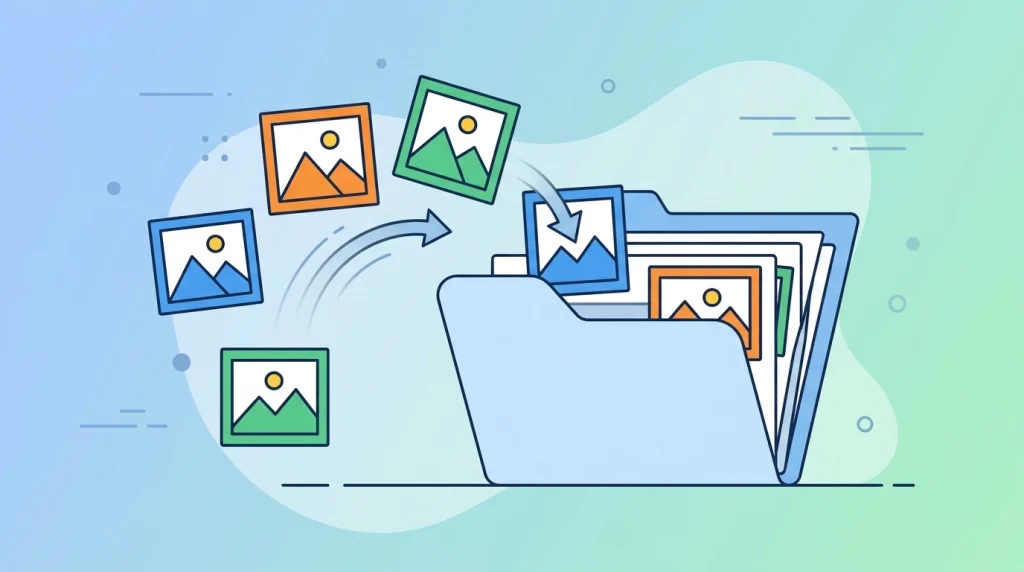
Step 1: Upload Your Images
Go to the JPG to PDF page and drag and drop your image files, or click to browse and select them from your device. You can upload multiple images at once.
Step 2: Arrange the Order
Set the order in which you want your images to appear as pages in the final PDF. This is especially important when combining several photos, like pages of a scanned document.
Step 3: Convert and Download
Click convert, and your images will be combined into a single PDF file, ready to download instantly.
No account, no software, no watermark.
Tips for a Clean Result
- Take clear, well-lit photos before converting — the quality of your final PDF depends on the quality of the original images.
- Crop images beforehand if possible, so the PDF pages don’t include unnecessary background.
- Name your files in order (e.g., “page-1.jpg”, “page-2.jpg”) so it’s easy to arrange them correctly before converting.
- Compress the result if the final PDF is too large to email — try DocPiko’s Compress PDF tool right after converting.
JPG to PDF vs. Other PDF Tasks
Converting images to PDF is often just one step in a larger task. You might also want to:
- PDF to JPG – do the reverse and extract images from an existing PDF. Convert PDF to JPG.
- Merge PDF – combine your new image-based PDF with other existing PDF files. Merge a PDF.
- Compress PDF – shrink the final file size after converting a large batch of photos. Compress a PDF.
Frequently Asked Questions
Is converting JPG to PDF online safe? Yes, when using a trusted tool. DocPiko processes your images securely and automatically deletes them from the server after conversion.
Is DocPiko’s JPG to PDF tool free? Yes, completely free with no signup required.
Can I combine multiple images into one PDF? Yes. You can upload several images at once and arrange them in the order you want before converting.
Does converting to PDF reduce image quality? The tool preserves image quality during conversion, so your photos will look the same inside the PDF as they did as individual files.
Can I convert JPG to PDF on my phone? Yes. DocPiko works on modern mobile browsers, so you can convert images directly from your phone or tablet.
Do I need to install any software? No. The entire conversion happens online in your browser.
Convert Your Images to PDF Now
Stop sending scattered photos when one clean PDF will do. Combine your images into a professional document in seconds with DocPiko’s free, no-signup tool.