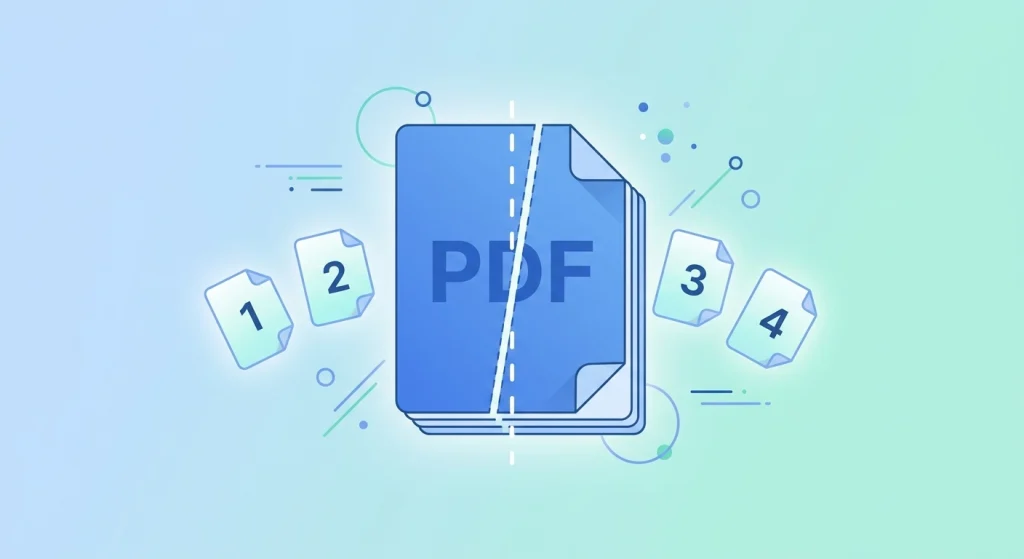
Sometimes you don’t need an entire PDF — just a few pages out of it. Maybe it’s one chapter from a scanned textbook, a single invoice from a bundled statement, or a signature page you need to send separately. Instead of opening heavy desktop software, you can split a PDF File online for free in a few clicks.
Here’s a complete guide to splitting PDFs, when you’d want to do it, and how to do it right.
Why Split a PDF File?
Splitting PDFs is useful any time a large document contains more than you actually need to share, print, or store. Common use cases include:
- Extracting specific pages — pulling out just the pages you need from a long contract or report.
- Breaking up a scanned book or manual into smaller, more manageable sections.
- Separating combined statements — like splitting a multi-month bank statement into individual months.
- Isolating a signature or ID page to send only what’s required, protecting the rest of the document’s privacy — a good practice recommended by most data minimization guidelines when sharing personal documents.
- Dividing a large presentation or ebook into chapters for easier distribution.
- Reducing file size — since a smaller, split file is easier to upload, attach, or store than the full document.
How to Split a PDF File Online (Step-by-Step)
Using DocPiko’s Split PDF tool, splitting a file takes just three steps:
Step 1: Upload Your PDF
Go to the Split PDF page and drag and drop your file, or click to browse and select it from your device.
Step 2: Choose How to Split
Select the pages or page ranges you want to extract, or choose to split the document into separate single-page files, depending on what you need.
Step 3: Process and Download
Click to process the file. Within seconds, your split PDF (or set of files) will be ready to download.
No installation, no watermark, and no account required.
Tips for Splitting PDFs Effectively
- Double-check page numbers before splitting — PDF viewers sometimes number pages differently than the file itself (e.g., a cover page can throw off the count).
- Rename each split file clearly after downloading, so you know what each one contains.
- Merge back together later if needed — if you split a file and later want to recombine parts of it, DocPiko’s Merge PDF tool does the reverse.
- Compress large split files if you still need to email them — try DocPiko’s Compress PDF tool afterward.
Split PDF vs. Other PDF Tasks
Splitting is often just one step in a larger workflow. Depending on what you’re working on, you might also want to:
- Merge PDF – combine files back together after splitting or reorganizing pages. Merge a PDF.
- Compress PDF – shrink a split file further if it’s still too large to share. Compress a PDF.
- Convert PDF to JPG – turn specific split pages into images for use elsewhere. Convert PDF to JPG.
Frequently Asked Questions
Is splitting a PDF online safe? Yes, when using a trusted tool. DocPiko processes your file securely and automatically deletes it from the server after the job is complete.
Is DocPiko’s split tool free? Yes, completely free with no signup or subscription required.
Can I extract just one page from a PDF? Yes. You can select a single page, a custom range, or split the entire document into individual pages.
Does splitting reduce the quality of my PDF? No. Splitting only separates existing pages — it doesn’t alter the resolution or content of the pages themselves.
Can I split a PDF on my phone? Yes. DocPiko’s split tool works on mobile browsers, so you can do it from your phone or tablet without installing an app.
Do I need special software to split a PDF? No. The entire process happens online in your browser.
Split Your PDF Now
Stop sharing entire documents when only a few pages matter. Extract exactly what you need in seconds with DocPiko’s free, no-signup split tool.